Review of Clicktale - how it really works and why it didn't for us
Posted by Ben on January 31, 2012 | Comments | Related Projects: Beauty Heaven site, Michelle Bridges 12 Week Body Transformation
Clicktale is a software tool which allows you to track what users are doing on your website. It is used to analyse how people behave and what they do on particular pages. We’ve used it on several projects to try to gain a better understanding of how users were travelling through the site. More specifically, we were trying to get a better understanding of how they were using particular pages & forms, and what steps we could take to improve our conversion rate.
To summarise our experience, we were quite disappointed with the results. The Clicktale reports seem to illustrate certain behaviours and user problems, but after some investigation we realised these weren’t problems.
Users were in fact behaving differently to what this tool was describing.
We wasted a lot of time investigating issues that we couldn’t reproduce, and worrying about defects which weren’t there.
Our problem was that we realised that some of the Clicktale data was wrong… but the trouble was we didn’t know which bit.
Clicktale seems good for some superficial “feel good” reports (look – users are using our web site!). The visitor recordings and heatmaps make for great eye candy to flash in front of a bewildered client or manager. Clicktale really blow away their competition both in terms of generating pretty results, and also explaining this well on their website. The site also explains how cheaper it is to use Clicktale vs eye tracking and actual user testing (no mention of the expense of sending developers off chasing wild geese).
Where things fell apart for us was when we tried to use Clicktale to dig deeper. We wanted to analyse how people went through a series of forms, what they were interested in, and gain better insight into where people were getting confused or dropping off.
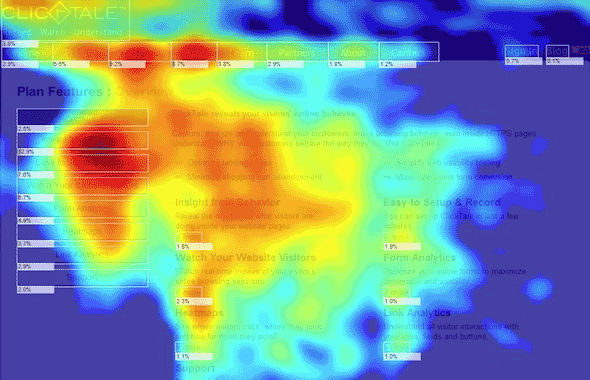
Clicktale’s main premise is that it will record what someone has done on your site and then show you a video style playback of what occurred. You can watch what they do and understand how real users behave. This information can also be summarised in a heatmap, which shows where users have clicked and pointed.
The problem is that there are a few technical issues with accurately recording users behaviour, which Clicktale hasn’t really solved.
Here’s a simple example, using the Twitter join form as an example. The first screencast is what a user actually sees:
This is (in my humble opinion) a pretty nice join form. It gives lots of clear feedback and helpful suggestions. The form uses Ajax to check if that username is available or in the right format, plus comes up with some helpful suggestions. In this example user tries a few and then chooses one of the suggested names.
This is how the same user behaviour on this form would look like via Clicktale. Note the absence of any kind of prompts or help text, and the pauses while the user reads the validation message (which isn’t visible).
If you were viewing this playback to get a sense of how the form was being used, you might conclude that the user is having real trouble with filling it in. Not only that, but none of the prompts are appearing and the form looks totally broken. Have we tested in all browsers? Is this a problem that occurs under load? What is this user doing differently to all our test results?
The reason for this descrepency is that Clicktale isn’t actually taking a screencast of what the user is doing. Although you could be forgiven for thinking this – it is how it is explained on their site.
See absolutely everything visitors do on your webpage. Watch recordings of your visitors’ full browsing sessions to discover exactly how they use your site. It’s as if you’re looking over their shoulder!
Using Clicktale is not like looking over their shoulder. Clicktale records mouse position every second or so and keyboard strokes. Then, in a separate process, a Clicktale bot visits your site and takes a screenshot of that page. The actual playback is an animation of this screenshot and an image of a mouse cursor moving over the top of it. Similarly the heatmap uses this screenshot.
There are a few problems with this approach, but the primary one is that the screen that you’re seeing in the playback can be quite different to the one that your user just saw.
A few of the ways it can be different:
- Prompts or hints: if the form has validation or prompts using javascript, these won’t appear
- Conditional fields: (eg: if I have children, ask how many) if the form shows or hides questions based on what you’ve filled in this will seem like the logic doesn’t work
- Menus – your site might use menus that expand out. These won’t appear since they use javascript, and your user will look like they are clicking on whatever is directly behind the menu area.
- Ajax: if the form uses Ajax to check something (eg: that username already exists) this won’t appear. So the user might be seeing a message, but when you’re “looking over their shoulder” with Clicktale, all you’ll see is a mysterious blank space and a pause. Or possibly a completely different screen.
- Prefilling some fields: if your form is prefilled based on information from a previous screen, this just won’t appear. In the Twitter example , the user fills out name and email on the first page, and then goes to a signup page. Via Clicktale you’ll get the impression that somehow a user is able to submit the signup page without adding name and email
- POST forms: a form can use either POST or GET. POST is generally used for sensitive information like name, email etc, but Clicktale can only use GET. Clicktales very lean help document most helpfully suggests as a way of resolving this to convert your forms to GET (at which point I was thinking of another word I could tell them to put after “get”)
- Multiple step forms: you might have your form split over several pages, and POST information from one page to the next. This is pretty common, but it seems to completely confuse Clicktale and mouse tracking data from one page will appear on another
- Cookies: if your process uses cookies or session information, this won’t come through. Clicktale will show you a cookie-less version, which might be radically different to what your user was served.
None of these are particularly obscure or unusual elements for a web site to have- in fact I’d be surprised if most sites other than a basic static brochureware site wouldn’t use at least a few of these.
If it’s still unclear as to why this would be a problem, here is what I’d see if I used Clicktale to analyse how people are using the Bookdepository checkout process. As you can see the two screens are quite different. The Clicktale playback will still merrily animate a mouse cursor moving around, but as you can see the image would be completely wrong and misleading. Likewise for the various heatmaps and reports.
![]() | ![]() |
What a real user sees | What you’ll see in Clicktale |
Which is puzzling, because on the Clicktale site there are a lot of testimonials gushing about this amazing insight into behaviour which improves shopping and conversions. I’m not really sure how many of these site don’t use some sort of cookie or session information to facilitate a checkout process.
OK – maybe Clicktale can provide insight in other ways… like using the heatmaps to see what people are interested in. Again, we’ve been down the rabbit hole on this one, trying to solve problems that it turns out never actually existed.
Heatmaps run into the same problem as the playback issue above – the screenshot in the background might not be what the user was looking at. You might notice a lot of heatmap activity around the top of your page. That might be people clicking around the header, or if you have a dropdown menu they might be clicking on the menu items. Or they might have been clicking on a message area or banner ad that isn’t in the screenshot.
Now, I’ve always had a soft spot for a nice heatmap, but Clicktale ones have another problem – they’re not heatmaps of what people are looking at, they track where their mouses are pointing.
The Clicktale blog assures us that this isn’t anything to worry about, since there is a very strong correlation between where a user looks and where they point their mouse (84-88%). My bullshit detectors went off when I read that. Google pointed me to a few other posts that pointed out that the 88% is based on a misreading of the research, and the figure is more like 30%. I’d be surprised if it was even as high as 30%, and if you believe the 88% please contact me as I have a very interesting investment scheme in Nigeria that will make you very rich. I promise.
Here’s a simple test: as you read this line of text, where is your mouse right now? Is it hovering over each word? I’m guessing not.
Say we take the 30% number as a broad average, what these heatmaps are actually telling us is where people are not looking, most of the time. Try explaining that to your client or manager.
Ironically an instance where a user would look at where their mouse is would be as they are filling in a field or clicking a button. Typically things you’d do when filling out a form.
Other issues we hit:
- privacy – this is essentially a key stroke logger. Yes, the same thing that hackers use to discover your passwords. Every key stroke is captured and stored in Clicktale. There is an option to hide data like credit cards, but from what we’ve been able to gather this doesn’t mean it doesn’t get collected – only that it can be hidden during playback. The data is still sent and stored. If people can buy things or submit sensitive information on your site, then it is worth understanding the implications of tracking and storing this kind of information (more information on PCI here ). At the very least you should adjust your site privacy policy and make sure you are covered.
- speed – remember that every additional tag you add slows your site down. Some tags are faster (eg: Google Analytics) than others. Not only does it fire off some javascript each time, Clicktale has the added bonus of then triggering a bot visit. If speed is important, avoid sticking these tags everywhere.
- averages which aren’t – depending on the budget you’ve allocated, Clicktale will only record a certain number of visits a day. Once this runs out, the results won’t appear in your report. So if you’re trying to look at “average” behaviour, time of day may influence your findings.
- tracking where people click – there are lots of tools out there that do this pretty well. Google Analytics anyone?
At the end of the day, Clicktale wasn’t really a great fit. We’re trying a more pragmatic approach – solve real problems rather than using a tool to find problems. Some examples:
- using Event tracking in Google Analytics to track behaviour in the areas that we’re interested in (a much lighter approach – tracking what we’re specifically interested in rather than the shotgun approach of recording everything)
- develop scenarios or hypotheses for what a problem might be, and then ways we could work out if it actually is occurring (looking at logs and New Relic)
- if we see some people are having trouble with a particular the password reset, use events in GAnalytics to track frequency and evaluate that.
- Is there a pattern that a user in trouble might follow – eg: “I’ve tried to buy the same item 5 times”. When this happens maybe we could be more helpful and trigger a “can we help?” message or email to get more information? Or at least help the user feel that someone is there to help them.
Jira priorities: the story of Team Six and The Iceberg
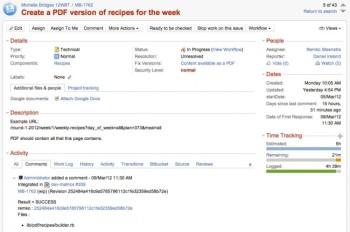
We use Jira to keep track of all of our tasks - without it we’d be overwhelmed with the sheer volume of “stuff” you need to keep track of on a typical project. For each of our projects, the client can email in issues to our team via a project email address. These emails don’t come directly to us- first they processed by Jira, which then transforms them into an issue in Jira. One of our Project Managers then picks this up, clarifying the task if necessary, and then assigns it to the right team or person.
Part of this clarification is assigning a priority. Sure - we know that some people would like everything to be "drop everything OMG high priority" (they also enjoy the caps lock key). But it helps to be a bit objective - so that the super important stuff stands out from the normal important stuff.
We’ve tried a number of different priorities - here’s what works for us and what they mean:
Low priority | |
| | Usually assigned to a task where something isn't working or needs to get updated. There is a workaround but it would make a user’s day to get this fixed. |
Normal (Default) | |
| | This is our default priority, and covers most things. Each task also gets a time estimate, so the developer can guage relative size between one task and the next. |
High priority | |
| | Please look at this issue before any of the other Pandas on your list. We’re not seeing fire, but can smell smoke. |
Rainy day | |
| | A relatively minor improvement that can be done when there is time. Some of our projects operate on a monthly retainer, so if there is time remaining this month, the possum gets got. |
The Iceberg | |
| | An often misunderstood fellow: The Iceberg. Before we used to spot these lurking around, but they’d get a low proirity and then slowly slip off the bottom of our development list. Until that Titanic moment and everyone suddenly remembers The Iceberg as the ship goes down. |
Team Six | |
| | We used to describe our super duper high priority issues as (wait for it) “very high priority”. This didn’t seem apt, as it was a bit higher than high priority - and if you’re going to make something high priority you may as well make it very high priority... |
Deploy blocker | |
| | This isn’t really a priority, but something that can be flipped on for any issue. |
Our work: Michelle Bridges 12WBT build
Posted by Ben on January 16, 2012 | Comments | Related Projects: Michelle Bridges 12 Week Body Transformation
Summary
The Michelle Bridges 12WBT is a project that we started working on in the middle of 2011, and which took around 3 months to build. It has been a very successful project for us- there has been a lot of positive feedback from users and we’ve been able to refine some of the ways we approach big projects. Since launch, we’ve been pushing out incremental improvements and new features via regular sprints.

The site has a few interesting technical challenges:
- lots of traffic – needs to handle fairly high surges of traffic, with a lot of members joining and paying by credit card at the same time
- lots of dynamic/interactive content on pages like member weights & fitness results. This can make page caching tricky
- different content on different days – each day new content or functionality appears, like a new video, tool or forum area
We used Agile methods such as stories and sprints to help with the initial build, and then tools like New Relic and Jenkins to deliver a fast and reliable site.
How we approached this
This was an unusual project in two ways. First of all, there was already an existing site. This meant everyone was on the same page in terms of how things needed to work, and what wasn’t working and needed to be different.
Second was the time frame- the 12WBT program runs several times each year, and so by taking this on we needed to commit to delivering a fully tested and working site before the next round kicked off. We didn’t really have an opportunity for a soft launch or gradual release- everything had to work.
We approached this in an Agile fashion and broke the project up into a series of 1-2 week sprints:
- basic content- exercises & recipes
- forum & membership
- nutrition & exercise plans (grouping of content), charging members
- dynamic shopping lists, user profiles
- event system, private messaging, comments & reviews
- caching, server performance
Each sprint consisted of:
- defining what we needed to do: acceptance criteria and key features
- designing and building these features
- showcasing what we’d done to the 12WBT team and incorporating feedback
We needed to hit a specific time for release, so there was constant negotiation around what would be in the final release vs post launch. We used Jira and Greenhopper to prioritise each item and keep track of these as feature stories and requests.
On a typical project we’d start with a series of wireframes, mapping out different areas and functionality. We’d then embellish these wireframes with Stories – so for each key area we have a visual diagram plus a set of stories which describe it. On 12WBT we already had a working site, so we skipped wireframes and relied only on Stories- not as pretty to look at, but they did the job. So the existing site described how a feature should look, and the Story described how it should work.
Here’s how Stories work:
For each feature on the site, we wrote a Story for how it should work. In Rails, Stories are especially significant – they improve communication across the team and speed up the development process.
As an example, let’s use the invitation to weigh in message. Each of the 12 weeks in a Round can have things appear on different days – so one day might be when new recipes appear, and the next day might be when you need to weigh in and record your weight.
If today is weigh in day, this is what you should see on your dashboard:

Here is the story:
As a member who has not weighed in this week
when today is Weigh In Day for week X
then I should see “weigh in day!” form
so I can update my weight
This Story is pretty simple, but it covers a lot. First, it describes the basic “thing” this feature needs to do: get people to enter in their weight on the right day. If you were to write a “traditional” long form IT spec doc, you might struggle to communicate that as clearly. That is one of the advantages of Stories- you avoid a situation where your developer has made what has been asked for, but not what you wanted.
This Story simply describes what the user should see when and why (“so I can update my weight”). It isn’t stated, but the Story also infers that you should only see the form on weigh in day, which is correct – you shouldn’t see the form on other days. A separate step could check that.
This story uses a syntax called Cucumber, and the powerful bit comes when we can take this plain English Story and feed it in to our Rails application as a test – one of hundreds we might have. This is where things get all super awesome- that Story is used to fire off processes that will automatically check it with that type of member, on that day, and test to see if the member can update their weight.
What do Stories have to do with tests?
Back in the stone age of web development, developers would write code, and then someone would then need to test that it works. Something might break, a tester would report it, and the developer would then fix it. That process kind of works as long as the code remains simple. Increase complexity and you’ll either need more testers or a longer time between releases.
More modern ways of working with code (known as “frameworks” like Ruby on Rails) use tests as an intrinsic part of making stuff. Instead of testing if something works, you create a process that tests it. How many of the features you test is referred to as “coverage”. If that process fails, then you know the feature isn’t working.
Making something and then writing a test to check that it works is useful. Even better: we can write the test first (it will fail), and then make the feature until the test passes. Even betterer: we can write the test as an easy to read Story- that way everyone can see and understand the point of this particular bit of functionality.
Meet Mr Jenkins
The 12WBT project is quite complex, with a heap of moving parts. A human would take days weeks to test each of the different aspects of the site (can I still log in?, will it accept my credit card? can I make start a new topic in the forum?, etc). Since we’re often deploying a new version to the live site several times a day, this approach wouldn’t really cut it.
Because this is a paid site, members would be understandably upset if we did push up a change which meant they couldn’t sign in or do stuff. Yes, we could roll back to an earlier version, but we might not pick it up in time.
Remember all those hundreds of Cucumber tests? Well, each and every time a developer adds new code, our Jenkins CI server fires up, checks out a version of the code and creates a “fake” 12WBT site. This then gets filled with content, and all of the tests get run. If a test fails, the developer gets a nasty email and all the team knows. At that point that developer goes very quiet and scrambles to fix the build.
Some features can get described in a story, while other things we’d like to test require someone to click around with a browser (eg: when I click on that does that open and do I see X? When I put a pay by credit card do I get an email a few minutes later?). To test this we use Selenium, which runs a browser session over the site to check that everything is where it should be.
Since he is quite particular, Jenkins also runs a quality check on our code using a tool called MetricFu. This looks for “smelly code” (a.k.a. “shitty code”) – repetitious or unnecessarily complex bits that indicate poor quality. Again, this is automated so is running continually in the background – no humans required.
Using a CMS vs a Framework
One of the unusual things about this project was that a separate team had already built the site. This had used a PHP based CMS to manage all of the content as pages, while we took a different approach and relied completely on the Ruby on Rails framework.
To explain why, here is how the business process for the 12WBT site works:
- There are a series of rounds eg: Spring 2012, which start and end on particular days.
- Within each round there are 16 weeks. On each day within each week, different content and tools become available- so a video might appear on one day, new recipes on another.
- A user signs up and pays for Spring 2012, and then gets access to Spring 2012 content & tools
- The content in the site is broken into video, information pages, interactive tools (eg: graphs of my weight), lists (eg: recipes), events (user generated) and forum (user generated)
Taking a CMS approach has some definite advantages – for example you’ve already got a way of authors to edit content, and you can schedule pages for when they should appear – you don’t need to develop anything. We often take a CMS approach for sites that have a lot of static pages or a mix of CMS and framework.
However a CMS also introduces limitations. For example everything becomes quite “page centric” – all the data is tied to which page it is on. Which is fine if your site is a blog or a series of content pages. But let’s say in your site you have a bunch of recipes. Each recipe has pictures, some instructions, ingredients and how long it will take to cook, and each recipe lives on it’s own page. You might want to show your recipes in a list, but then you might also
- show me only those recipes that Ben likes
- I have some chick peas – what can I cook?
- I like this recipe, but flip to the vegetarian version (and from now only show me vegetarian recipes)
- or show me a shopping list of what I need to make this weeks recipes
…then having recipes as “pages” in a CMS becomes hard. Since all the information for each recipe is inside a CMS page in a particular section, the code has to hunt around and do quite a bit of work to grab that list of chick pea recipes or generate a dynamic shopping list. The code has to deal with all the artifacts or “code dags” that need to be there for the CMS, rather than grabbing the information directly from the database.
Things get interesting when you have several 12WBT rounds running at the same time. Some content is common and shared between all rounds, while other content is unique. Members leave comments and reviews, and these are only seen by other members in that round. Different parts of the forum need to unlock on different days.
By using a framework approach, we were able to create tools to easily load content like recipes, and then do interesting things with them – like show vegetarian user’s only the vegetarian recipes, or dynamically generate a shopping list of ingredients for a particular week.
Awesome member service
One of the things that we identified as a priority was to look after members- to make sure they had an awesome experience and to respond quickly if something did go wrong. Once a member is paying for an online service their expectations of service increases and we need to meet their expectations.
Online companies like Zappos have grown massively not because they sell cheap shoes, but because they excel at customer service. To try to deliver awesome member service we used:
- Assistly – all questions and emails come through to a member service queue that uses Assistly. Common questions get pushed to an FAQ answers page. The end users never actually see Assistly – it just hums away in the background. The 12WBT team log in and answer the questions inside Assistly, and this content then gets pushed out to the front end of the site.
- New Relic tracks the performance of the site, from the amount of requests that the main application is handling through to browser load times. Anything unusual and we get an alert in Campfire and via Jira email – so we often know about issues before they get reported. We can spot trends with slow code or database queries and pick up recurring errors. This has meant site performance has been quite smooth.
- Jira – any payment or technical issue that does come through goes straight into Jira via email. Having Jira doesn’t mean we solve it faster, but it does make our process more transparent and reliable. Issues get picked up quickly, and once resolved the member service team can respond immediately.
Server performance & testing
Another area that we thought was important to address was speed. This site gets quite busy, so keeping page load times as quick as possible was critical. First of all we needed to do extensive load testing to simulate high load scenarios- and there were two we were worried about:
- what would happen when a gazillion people tried to sign up and pay at once? Would our background_jobs be able to process them fast enough?
- how would the forums feel when that horde then jumped into the forum or started a live chat?
There are lots of load testing sites and software out there, but some can give misleading results. We needed to find a load testing solution that could
- generate lots of traffic that could go through the site and follow a path through the site. Many load tools will send traffic which is all hitting the same version of the page (which is then cached), so reporting good results. Meanwhile real users with real cookies & browsers might be getting unique pages, which generates a lot more load- so the load testing is pointless. We needed something which was as close as possible to real users using real browsers.
- network bottlenecks – load tests might be restrained by connection speed – particularly if sending the load test off a single computer. Your connection might only allow 100 users through- which means that will be all that get tested (even though you might think you’ve sent 10k users)
- transactions – we needed a tool that would allow us to have virtual users that would sign up and pay with a credit card, and then wait around to get the confirmation email. Ideally these transactions could be via Selenium scripts, as we’d already created these.
- dynamic attributes – we wanted our virtual users to log in with their own email & password, update avatars, and write unique posts on the forum, comments and reviews. In other words behave like real people would.
We used Browermob to simulate this load, using dynamic Selenium scripts to describe different paths through the site. Thousands of users created accounts, paid with test credit cards, logged in and used the site – just like normal users do.
Performance
Part of our redesign involved carefully looking at how to best cache each page, to ensure great performance. Some pages can be completely page cached, which means the page you’re seeing has been pre-generated. Other pages contain dynamic elements which are regularly being updated- say a forum page. For these we used fragment caching, which is part of Rails.
We also moved the hosting from a US cloud service to a local AU physical machine. The config changed from Apache to use the mighty Nginx web server, with Thins for the application. Although cloud seems to be the rage at the moment, people often overlook the limitations of a virtual environment. A cloud seems to be great if you have a small site that you’d like the ability to shut down if required, or if you need thousands of servers to distribute tasks to. If you’re in the middle, then I’m not sure if cloud is always a good approach.
Using a “bare metal” server that is physically close to most of your audience makes sense if you need speed- it certainly means a far snappier response rate. This James Gollick presentation has some interesting bits on this (he calculated the impact of server speed to his site revenue). Here is our Google speed report on average server response comparing the old site to the new one (hosting was US Cloud now AU bare metal running Ruby on Rails).

What we used:
- Ruby on Rails 3
- Beast (heavily modified) – Forum
- Devise – user authentication
- Cucumber – stories
- Jira & Greenhopper – issue tracking
- Jenkins – Continuous Integration server
- Capistrano – automated deployment
3rd party services
- Chargify – recurring billing management
- Chatroll – live chat
- Assistly – customer service
- Campaign Monitor – emails
- New Relic – application monitoring
- Browsermob – load testing and browser simulation
- Brightcove – video CDN
- Cachefly – Content cache and delivery network (CDN)
Benchmarking the perfect project: what makes one project better than another
A few months ago, we started working with a project management coach.
The aim was to try to improve the way we do things. We already have lots of quite tight processes for our technical work, but didn’t have any around managing all the different things that our project managers do.
Each week, we’ve been working through a different area. One that came up was benchmarking – trying to work out a way of measuring how well we’re going. We came up with the concept of the perfect dive – each project being like a diver diving off a board. There are different types of dives, but there are a few things you can practice doing right each time.
Here is a (slightly) shortened version of the way we defined the perfect project. We’ve started tracking each of these at the end of each project.
The perfect project:
- The budget is estimated and agreed. We’re on the same page with the client on requirements and brief. No surprises.
- Allocation – the right people get involved, no one is stolen from another project. Everyone is able to give input early on.
- Setup – all our tools like Jira, Harvest and the Wiki are set up with schedules, briefs and issues
- Wiki – is comprehensive and kept up to date
- Everyone is happy – all the team understands the project well, any client questions or requests get responded to quickly. Our Client feels totally informed, thinks we’re in control and trusts us
- WIPs – There are regular team WIPs and standups during the project
- Go live issues considered before launch – like server load and all the various setup tasks. Nothing got forgotten. PM go-live tests and checklists are all green.
- Tools like Analytics, Hoptoad and RPM are set up. Ongoing activity reporting set up and PM knows what to keep an eye on.
- We get paid: The invoice is sent, client is happy with costs as they were as budgeted. Total hours were accurate to our estimate.
- Close out report sent.
- We get more projects from this client
- No one cried
We’ve created a set of survey questions, which gets sent to a project manager at the end of a project. Hopefully we can start gathering some useful information and benchmark our project management efforts.
The story behind our Wallboard: who's working on what, and can I deploy yet?
A wallboard or information radiator is a large, highly visible display used by software development teams to show anyone walking by what’s going on. The “old school” way is having a pinboard or whiteboard where status charts are kept updated, and developers can grab new tasks to work on. Some teams now use large monitors to show this information – like this one by Panic. Atlassian (who make many of the tools we use like Jira) are running an Ulimate Wallboard competition, and that is a great place to look to see some of the wallboards that people have made. Oh, and please add a vote for our entry.

click on this image to get a bigger version
Our wallboard is a bit different from some of the others. First up, we didn’t want to make a bigger version of what you can already get out of our issue tracker, Jira. Second, we felt it didn’t need to alert people about new issues- we already have lots of emails and alerts that do that quite effectively.
Finally, the information needed to be useful / interesting enough to look at while you’re making a coffee.
We looked at the kind of requests and information that our team were already asking each other – stuff like “what are you working on?” and “am I OK to deploy this project?”. We also wanted to use the wallboard as a way of influencing behaviour, as the information is up there on the big screen. Right now we have an problem with people not keeping time sheets up to date. We’re hoping that by showing what someone is working on (according to their time sheets) everyone will start keeping this up to date.
Issues for the week
We wanted to create an overall list of issues for the week. On some projects we have sprints or deadlines where we are trying to close off a certain number of issues. But we wanted to have something that would give the overall numbers at a glance. The point being to get as many closed this week as we can.
Projects
These are milestones that are coming up – so how many days to go and how many issues are outstanding. We compare the information we have in Jira (our issue tracker) to Harvest (our time sheet system). If there are more issues than we have time left in the budget, the project changes from green to red.
Who is working on what
This is a list of what everyone is working on- the project name and the specific task. Next to that is the number of issues they have this week. Since not all issues are created equal (one might take 10min, another might take 10h), the graph shows the total time estimated. This goes red if a person has more time than everyone else (a hint to PMs to reschedule something).
Can I deploy?
This was designed to answer one of our most common Campfire questions – “Am I OK to deploy Project X?”
Our PMs also had an problem where work was being done, but then it was unclear whether it had been done and committed, or also moved onto staging or production servers. There was a separate problem where some tasks were “deploy blockers”, and had to get completed before the next deploy.
This feature answers those; it tells everyone how many issues are ready to deploy, and whether there is anything lurking around that they should be aware of.
Be nice
This pulls information from a tool we’ve made to track customer interactions. We already look at lots of different things to measure how well a project is going – number of issues, whether it is on budget, etc. One thing we weren’t looking at is how well customer interactions were going. How well did that meeting or phone call go? So we built a tool to measure this- hopefully it will provide some interesting data.
Alert message – calling all cars
We have various alerts popping up down the bottom – this one is from Capistrano letting us know that Dan has just deployed to Staging (really helpful if you just happen to be walking the client through the site at the same time). These also pop up in Campfire. Other alerts include ones from Hoptoad and New Relic RPM.